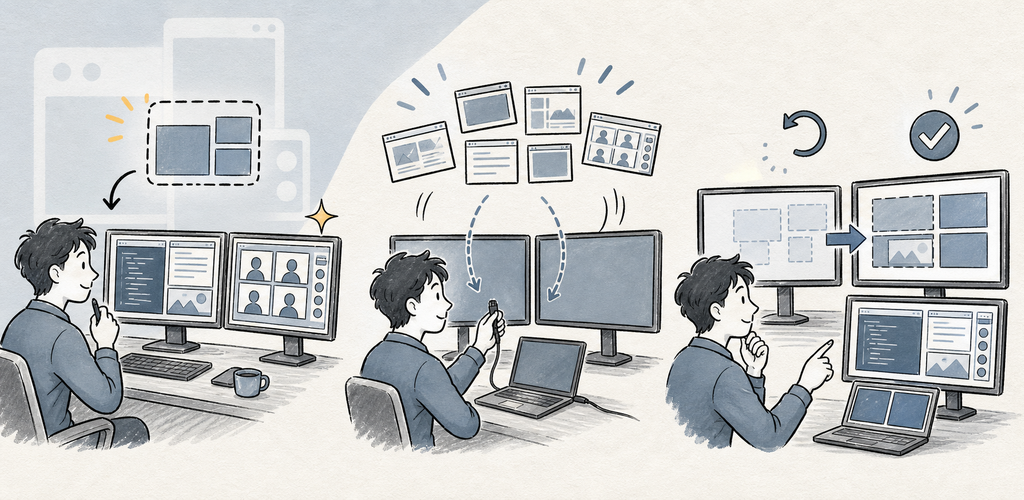
QuickLayout — Mac Window Layouts & LAN Remote Save, preview, apply, and undo Mac window workspaces, then switch them securely from an approved iPhone or iPad on your local network.
Why QuickLayout?
QuickLayout keeps window arrangement deliberate and reversible. The Mac remains authoritative, while the mobile companion receives only the layout summaries and commands needed for the remote workflow.
Key Features
- Save Current: Capture selected app windows as private schematic layouts without taking screenshots.
- Preview before Apply: Inspect moves, resizes, launches, skips, display changes, and unsupported windows.
- Transactional Undo: Save the affected window state before every arrangement and restore only what QuickLayout changed.
- Menu Bar and shortcuts: Reach Save, Layout Chooser, favorites, recent layouts, Gather, Grid, Undo, automation, and Settings.
- Gather and Grid: Recover off-screen windows or place the frontmost window into a chosen display region.
- Secure LAN remote: Pair with a six-digit code, search saved layouts, Apply, refresh, and Undo from iPhone or iPad.
- Capability honesty: Show Shortcut, Automation, Accessibility, full-screen, Spaces, Stage Manager, tabs, and per-window limitations explicitly.
Save → Preview → Apply → Undo
QuickLayout never closes or quits applications and never captures window contents. The Mac App Store build moves supported windows through the bundled Apple Shortcut; the signed direct macOS build uses Accessibility. Both paths preview changes, save an Undo point, and verify the result.
Perfect For
- Repeatable coding, writing, research, meeting, and media workspaces
- Multi-display setups and laptop/dock transitions
- Recovering off-screen windows and quickly gridding the front window
- Users who want visible preview and undo before automation
Getting Started
- On a Mac App Store build, install the bundled QuickLayout Window Bridge Shortcut when prompted. On a direct macOS build, grant Accessibility.
- Choose Save Current and select the apps and windows that belong together.
- Preview every proposed move, resize, launch, and skip.
- Apply the layout; QuickLayout records an undo point first.
- Use Undo if the verified result is not what you expected.
- For mobile control, enable Mobile remote on the Mac, keep both devices on the same LAN, and approve the six-digit pairing code.
Privacy & Security
- QuickLayout reads window metadata and frames, not screenshots or document contents.
- Layouts use private schematic rectangles and app labels.
- The Mac App Store build delegates supported window changes to the bundled Apple Shortcut. The direct build requests Accessibility only for window capture and arrangement.
- The mobile companion receives layout summaries, not document contents, window titles, or window coordinates.
- Paired LAN commands use an encrypted, authenticated session; hosting is off by default.
- After the trial, mobile Free may show advertising. See the Privacy Policy for the current advertising and Store-service disclosures.
Trial, Free, and Pro
The standard seven-day trial is ad-free. After the trial, Free keeps the full feature set and may show mobile advertising or a daily desktop support reminder. QuickLayout Pro removes those ads and reminders through a yearly subscription or a one-time lifetime purchase.
Terms of Use: https://kakitiro.com/quickapps/quicklayout/terms/