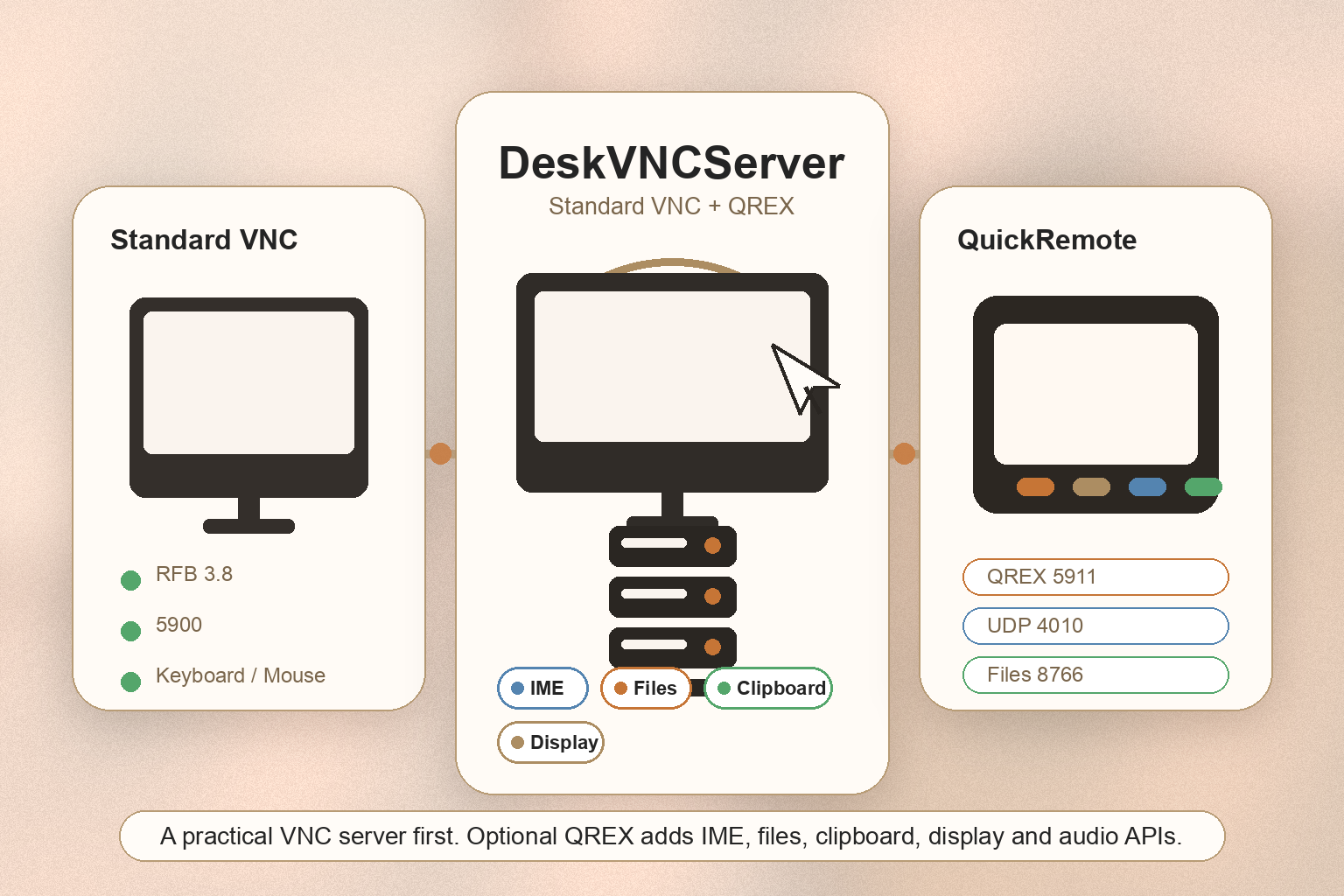
DeskVNCServer turns your Mac into a remote-access target that any standard VNC client can connect to, while also exposing a richer protocol — QREX — for the companion QuickRemote app. From a single panel you can share your screen, your clipboard, your files, and even your input method with another device on the network.
Why DeskVNCServer?
- Standard VNC, ready in seconds — A normal RFB 3.8 / 3.7 / 3.3 server runs on port 5900. Any VNC viewer (macOS Screen Sharing, RealVNC, TightVNC, mobile apps) can connect with a single password.
- QuickRemote-grade extensions — When paired with QuickRemote, the same server adds IME bridge, audio streaming, two-way clipboard sync, and full file transfer that classic VNC never had.
- Per-feature toggles — Audio, clipboard, file mutations, IME, remote input. Every extension can be turned off independently for stricter sessions.
- Designed for personal devices — One pairing PIN per session, server-generated Bearer tokens, no cloud round-trip. Your Mac talks directly to your phone or tablet on the LAN.
Key Features
- RFB 3.8 / 3.7 / 3.3 VNC server on TCP
5900with optional 8-character DES password - QREX control plane on TCP
5911— HTTP JSON RPC plus WebSocket for low-latency events - QREX media side channel on UDP
4010for IME messages and audio packets - QuickRemote-compatible file API on TCP
8766for browsing and transferring files - IME bridge — get, list, set, toggle, and commit text on the Mac's input method directly from a remote keyboard
- Optional audio streaming — Opus over UDP for low-latency live audio
- Two-way clipboard sync between Mac and remote client
- File transfer with read-only or read-write modes per session
- Adjustable frame rate and maximum frame size to balance latency and bandwidth
- Auto-start option and a stable Server ID for predictable QuickRemote pairing
Perfect For
- Anyone who already uses a VNC viewer and wants a clean, modern Mac-side server
- QuickRemote users who want the full IME, audio, clipboard, and file experience
- Developers and power users who need a controllable VNC endpoint on their LAN without configuring macOS Screen Sharing
- Mobile users who occasionally need to drive their Mac from a phone or tablet on the same Wi-Fi
- Privacy-minded users who want zero cloud relay between client and server
Getting Started
- Set a VNC password (up to 8 characters) from the Settings panel — required by the RFB DES auth flow
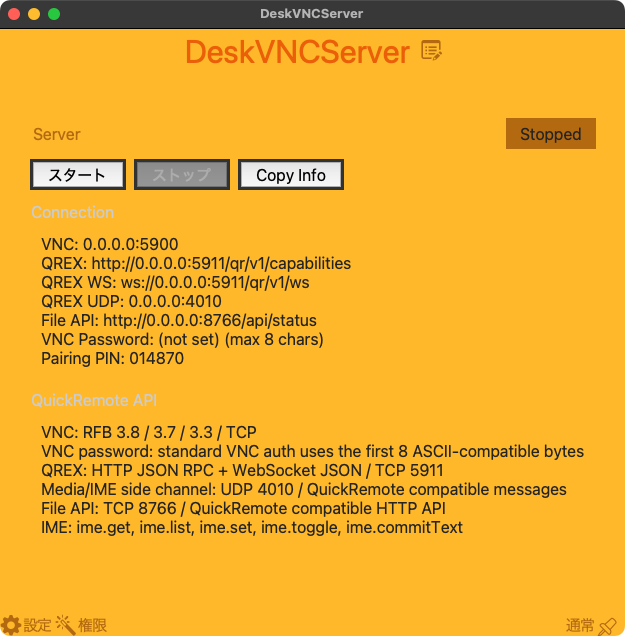
- Click Start on the main window. The server begins listening on ports
5900,5911,4010, and8766 - Click Copy Info to copy the connection details to the clipboard, then paste them into your VNC viewer
- For QuickRemote, scan or enter the 6-digit pairing PIN shown by the app. After pairing the client stores a Bearer token for future sessions
- Toggle the QREX feature checkboxes (audio, clipboard, file transfer, IME) in Settings to match the access level you want to grant
Privacy
- All sessions are direct — no cloud server, no relay. Your traffic stays on the LAN unless you forward the ports yourself.
- VNC password and QREX Bearer token are stored locally with restrictive file permissions.
- QREX clients must complete a PIN-based pairing before they can issue control or file requests. The PIN rotates on demand.
- File mutations are off by default; remote clients can only read until you explicitly enable writes.
- No telemetry, no analytics, no background uploads.