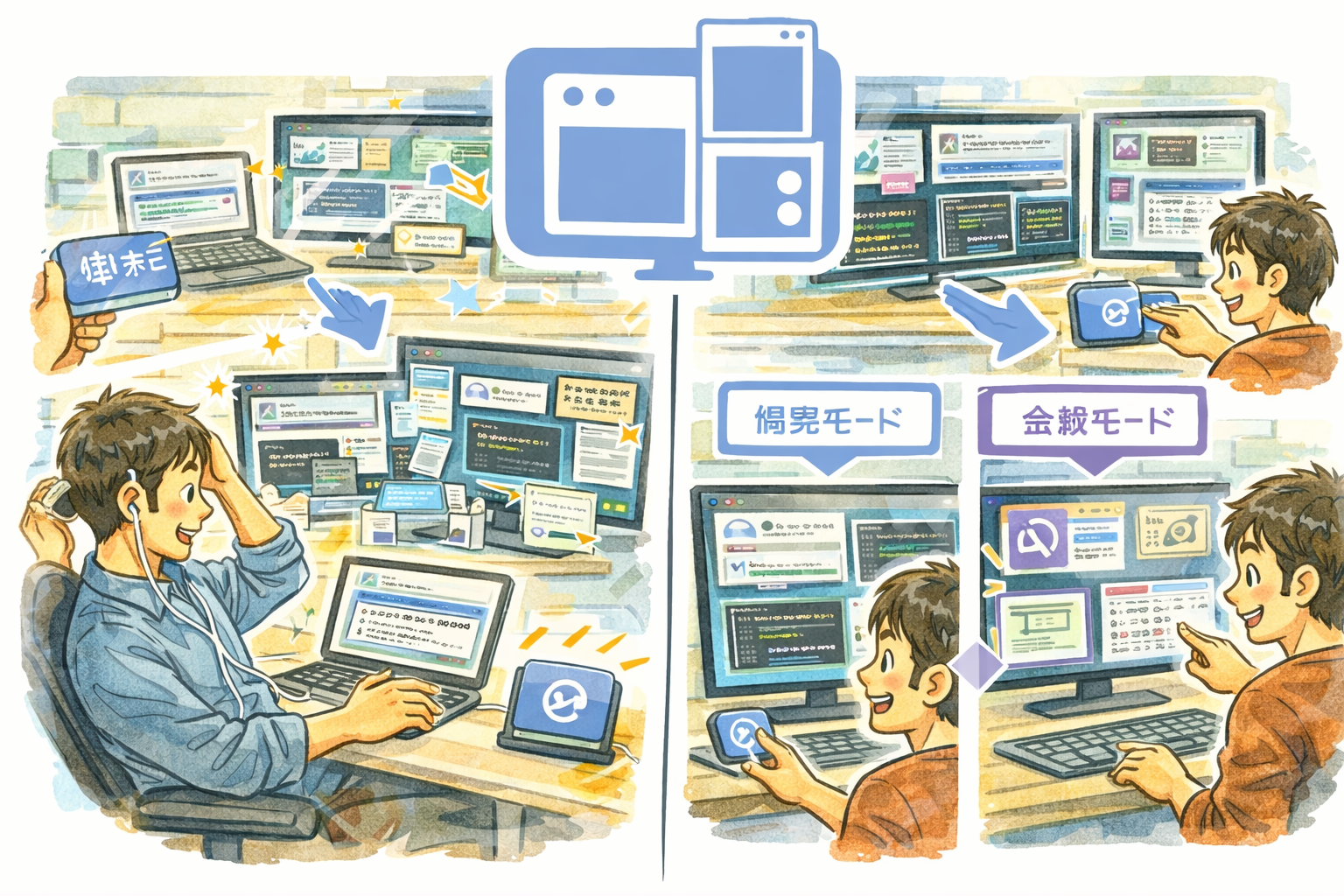
DeskFormation saves and restores your entire desktop window layout with one click. After a restart, a monitor change, or a meeting that scattered your windows, restore everything back to exactly where it was — including launching any apps that are not running yet.
Why DeskFormation
- One-Click Restore — Bring every window back to its saved position and size instantly, no manual dragging required.
- Smart Matching — A 4-stage matching algorithm (exact match, then progressively relaxed similarity) ensures windows land in the right place, even after app updates change window titles.
- Auto-Launch — Missing apps are launched automatically during restore, so your full workspace comes back to life.
Key Features
- Capture all window positions and sizes — Saves every visible window's location, dimensions, and app identity
- Smart 4-stage restore matching — Exact match, title similarity, app-name match, and fuzzy fallback for reliable restoration
- Auto-launch missing apps — Automatically opens apps that are not running when restoring a formation
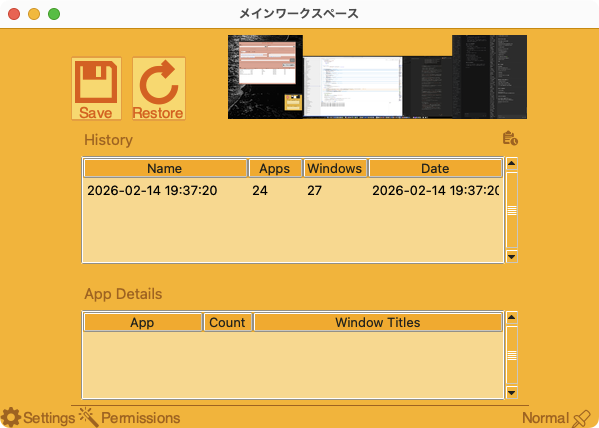
- Digest screenshot — Visual preview of your saved layout for quick identification
- Formation history — Keeps up to 50 saved layouts with timestamps and app summaries
- Rename and delete — Organize your formations with custom names and clean up old ones
- Global keyboard shortcuts — Save and restore layouts without opening the window
- Multi-language interface — 80+ languages supported
- Customizable theme colors
Perfect For
- Professionals who maintain different window setups for different tasks or projects
- Multi-monitor users who need to restore layouts after reconnecting displays
- Developers and designers with carefully arranged tool windows, editors, and browsers
- Anyone who wants to reclaim their desktop layout after a restart in seconds
Getting Started
- Arrange your windows exactly the way you want them
- Launch DeskFormation and click the Save button (or press Ctrl+Cmd+S)
- A screenshot and window list are captured and stored in the history
- When you need to restore, select a formation and click Restore (or press Ctrl+Cmd+R)
- Rename formations for easy identification from the history list
Privacy
- All window data and screenshots are stored locally on your computer
- No data is sent to any external server
- Screen recording permission is used only to capture digest screenshots on your device
- No analytics, telemetry, or tracking of any kind
- DeskFormation never connects to the internet